


WinRE, also known as the Windows Recovery Environment, is a crucial built-in tool in Windows. Without it, you may encounter the following message when trying to reset your PC:
“Couldn’t find the recovery environment. Insert your Windows installation or recovery media, and restart your PC with the media.”
Dealing with this error can be quite stressful and frustrating, especially if you don’t have a Windows installation USB or DVD on hand. Fret not! Here, we’ll walk you through easy, step-by-step methods to restore your recovery environment. Let’s get going!
What Causes the “Insert Your Windows Installation or Recovery Media” Error?
The “Insert your Windows installation or recovery media” error usually occurs when Windows cannot locate the Windows Recovery Environment (WinRE), though other issues can also cause it, including:
- WinRE files may be accidentally deleted or corrupted, often due to software changes, disk cleanup, or virus attacks.
- The recovery partition might have been removed or resized.
- Your hard drive may have problems, including bad sectors, file system errors, or other disk damage.
- The recovery environment could be inadvertently disabled, often during Windows updates.
- Some Windows System files may be missing or damaged.
Bonus Tip: How to Rescue Data from Unbootable Windows Easily?
How to fix insert your Windows installation or recovery media? Before proceeding, it’s recommended to first extract your data from the unbootable drive. Tenorshare 4DDiG offers a very accessible yet powerful data recovery solution for hard drives. It works effectively in various data loss situations, including drive failure, virus attacks, accidental deletion, and formatting errors. Plus, this free data recovery software can recognize over 2,000 file types and is fully compatible with all versions of Windows. Here’s how you can use it:
Step 1: After installing and launching 4DDiG, navigate to the Hard Drive tab. Select the unbootable disk from the list of available drives, then click “Scan” to begin.
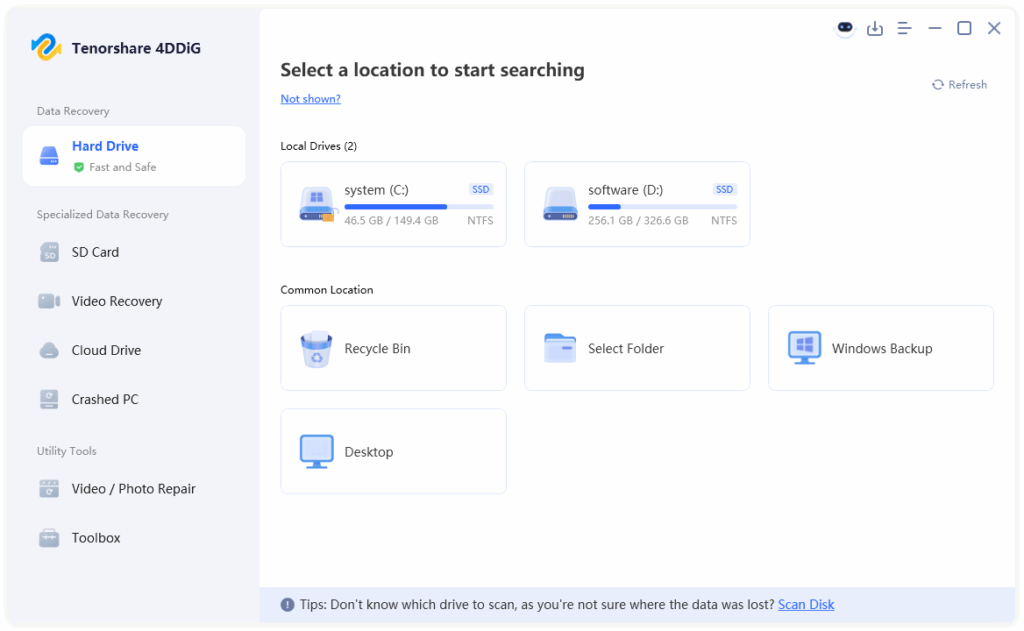
Step 2: 4DDiG will automatically scan the selected drive and display any recoverable files it finds. You can pause or stop the scan at any time, but for the best results, it’s recommended to let the scan finish completely.

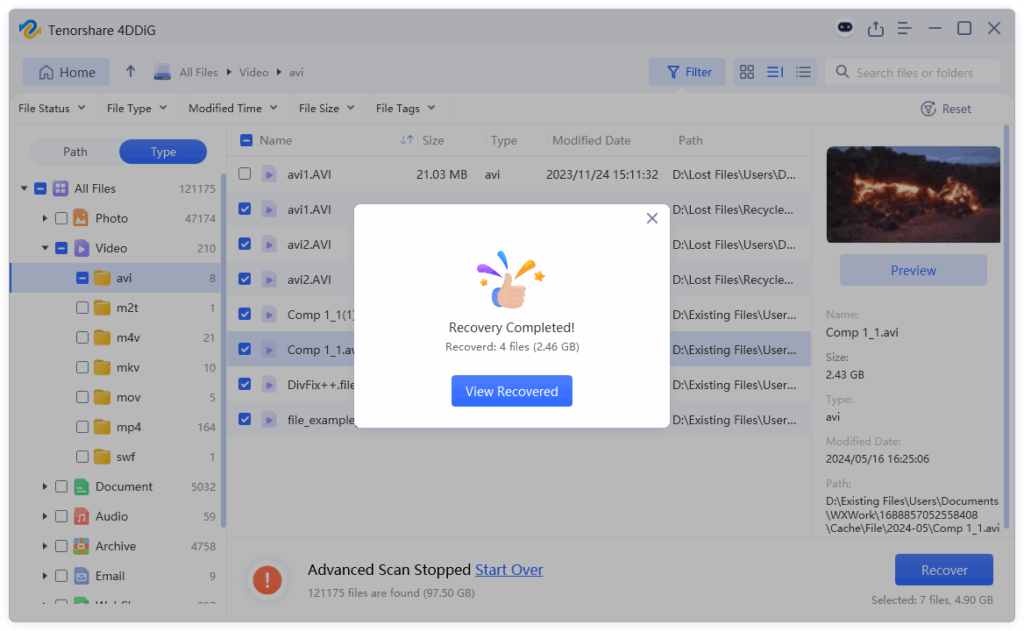
Step 3: Once the scan is complete, preview the files to ensure they’re intact. Then, select the ones you want to recover and click “Recover.”
How to Fix “Insert Your Windows Installation or Recovery Media” in Windows 11/10/8?
Option A: Enable WinRE Manually
When you see the message “Insert your Windows installation or recovery media” on Windows 10/11, it’s likely because the WinRE is misconfigured or disabled. You can fix it by following these steps:
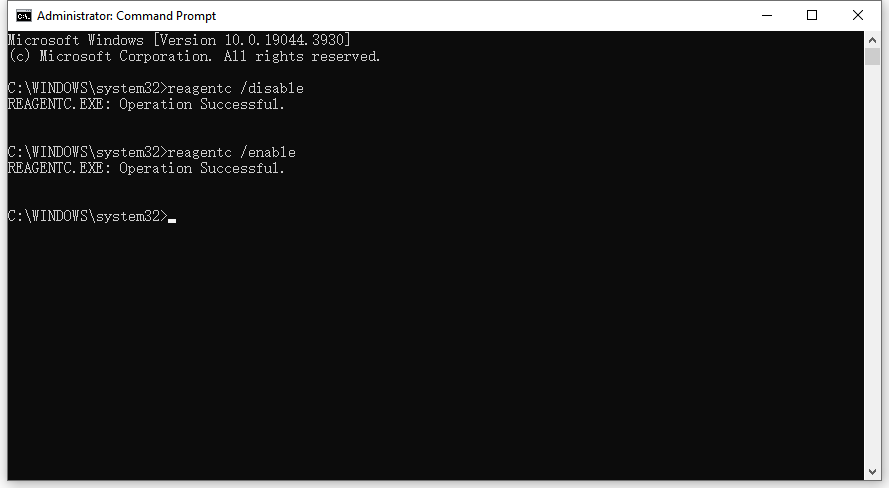
Step 1: Right-click on the Windows icon, and then pick “Command Prompt (Admin).”
Step 2: Type and run the reagentc /disable command.
Step 3: After that, execute the reagentc /enable command. Now, you should be good to go.
Option B: Repair Damaged System Files
Still wondering how to fix the “Insert your Windows installation or recovery media” error? If corrupted system files are the culprit, you can use a Windows-embedded utility to repair them quickly. Here’s how:
Step 1: Start by opening the Command Prompt app as an administrator.
Step 2: In the Command Prompt, write sfc/ scannow and press the Enter key.
Step 3: When the scan finishes, execute DISM /Online /Cleanup-Image /RestoreHealth.
Option C: Run the CHKDSK Utility
One potential way to resolve the “Couldn’t find the recovery environment” error is to run the CHKDSK command. This built-in tool checks whether the issue is related to bad sectors on your disk and attempts to repair them. Here’s how:
Step 1: First of all, launch Command Prompt with administrative privileges.
Step 2: Next, run the command chkdsk C: /f /r to start scanning your system drive.
Step 3: You’ll be prompted to schedule the scan on the next restart. Type Y to confirm, hit Enter, and then reboot your PC.
Option D: Reinstall Windows via USB
Many Windows users have experienced the “Couldn’t find the recovery environment” error when trying to use the “Reset this PC” feature. In addition to relying on the built-in option, you can create a bootable USB drive to reinstall Windows. This approach not only resolves the missing recovery environment issue but also guarantees a clean, stable system installation. The detailed steps are as follows:
Step 1: Grab a USB stick that’s at least 16 GB and use Microsoft’s official tool to turn it into a Windows installer.
Step 2: Put the USB in your computer, restart it, and hit the key that brings up the boot menu. Pick the USB option so the system starts from it.
Step 3: Once the Windows setup screen appears, follow the on-screen prompts to reset your machine.
Option E: Create a Recovery Drive
Windows comes with a built-in “Create a Recovery Drive” tool that allows you to create a USB drive containing system recovery tools. This drive can be used to repair your computer if it fails to start, or to reinstall Windows if necessary. Follow these steps carefully:
Step 1: Connect a USB drive with at least 16 GB of storage. Press Windows Key + S and type “Create a Recovery Drive”, then select it from the search results. Make sure to check the box next to “Back up system files to the recovery drive.”
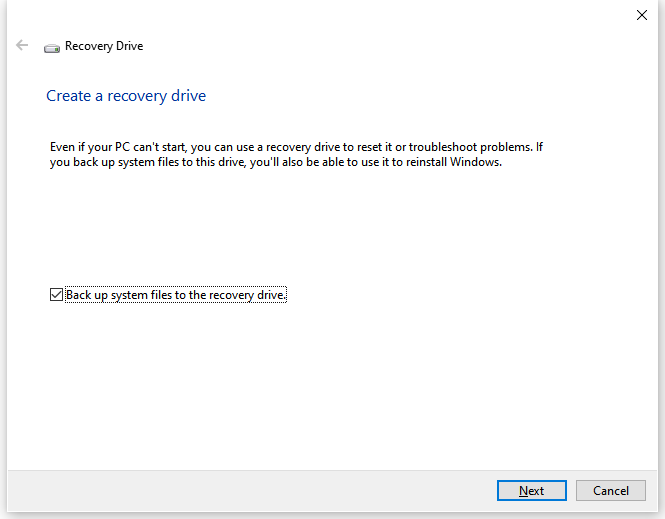
Step 2: Follow the on-screen wizard to copy the necessary recovery tools and system files onto the USB drive.
Step 3: Once the process is complete, insert the recovery drive, restart your computer, and boot from the USB. Here, you can run Startup Repair, restore from a system image, or perform a full Windows reset.
Bottom Line
So, there you have it—that’s everything related to the “Insert your windows installation or recovery media” error and how to fix it. If you ever run into similar recovery issues in the future, you now know exactly where to start. These tools—SFC, DISM, and CHKDSK —are built right into Windows to help you recover and maintain your system, so don’t be afraid to use them if something goes wrong. In case you lose important files during troubleshooting, Tenorshare 4DDiG Data Recovery can help you retrieve them safely.